
Google Tag Manager (GTM) is one of the most powerful tools for managing website and app tracking. It is a free product provided by Google that allows you to implement and manage tracking codes without modifying your website’s source code every time.
In simple terms, Google Tag Manager acts as a bridge between your website and third-party platforms such as:
- Google Analytics 4 (GA4)
- Google Ads
- Microsoft Ads
- Meta Ads (Facebook & Instagram)
- LinkedIn Ads
- Microsoft Clarity
- Hotjar
- and many other marketing and analytics platforms.
One of the biggest advantages of GTM is that it greatly reduces your dependency on developers for tracking implementations. Instead of asking a developer to add tracking code to a specific page, button, form, or link whenever you need to measure something new, you can usually create and manage those tracking tags directly from the GTM interface after the initial installation.
Once GTM is installed on your website, it provides hundreds of built-in tag templates, triggers, and variables that make it easy to connect your website with different platforms and track user interactions such as button clicks, form submissions, file downloads, scrolling, product views, purchases, and many other events.
Installing Google Tag Manager
In the past, Google Tag Manager provided two snippets of code during installation. One snippet was placed inside the <head> section of the website, while the second was added immediately after the opening <body> tag.
However, Google has simplified the installation process over time. With the newer implementation using Google Tag, many websites can now be configured with a single code snippet placed in the <head> section, making deployment and maintenance easier. Depending on your implementation, you may still encounter the traditional GTM installation method.
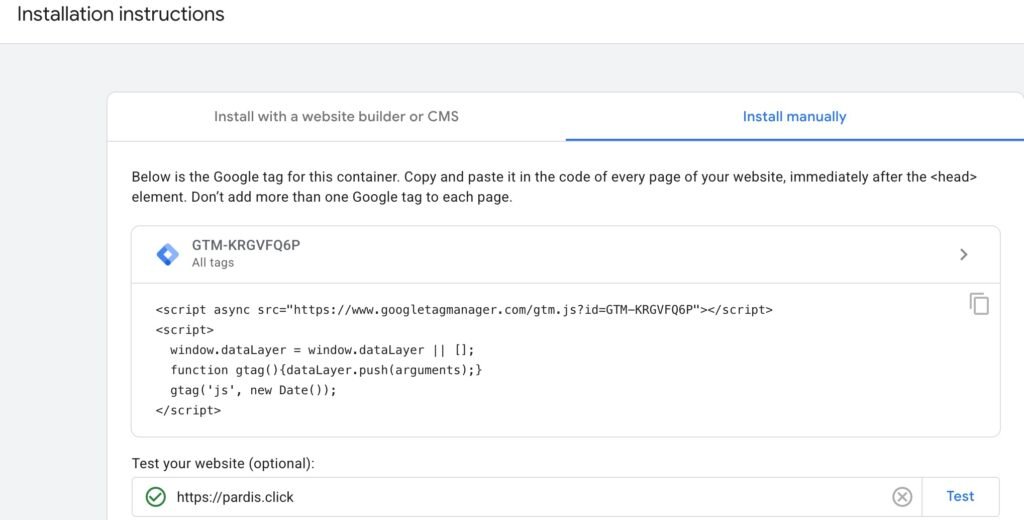
Testing Your Installation
After adding the code to your website, you should verify that GTM is installed correctly. The easiest way is to use Preview Mode in Google Tag Manager or Google Tag Assistant.
If GTM is not detected immediately, clear your website cache (or click Purge All Cache if your caching plugin provides that option) and test again. Cached files can sometimes prevent newly added tracking code from loading until the cache is refreshed.